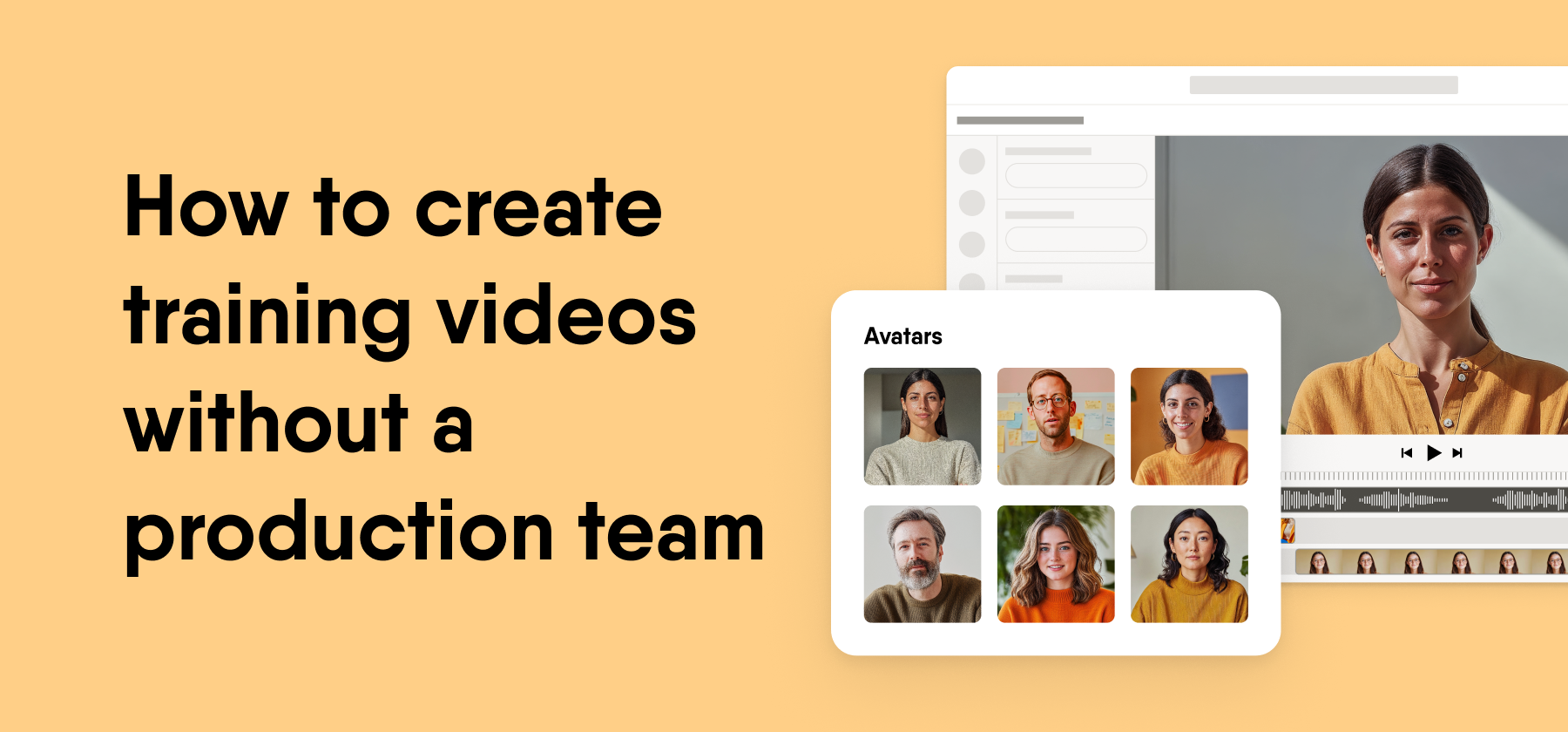
An L&D team can create training videos without a production team if it works from an existing slide deck or standard operating procedure (SOP), picks an AI avatar or screen recording format, adds an AI voiceover, and builds each scene like a slide. Scene-based editing keeps updates small, so one person can make and maintain the videos.
This guide shows how to make training videos step by step. It is written for L&D teams that support global teams and have no video specialist on staff.
Key takeaways
- Start from content you already have. Slide decks and SOPs give you a script outline before you open a video tool.
- Pick the format by the task. Avatars suit policy and onboarding, and screen recording suits software steps.
- Build in scenes. An edit to one scene leaves the rest untouched, which cuts rework.
- Measure behavior, not views. Completion rates and on-the-job results show whether a video works.
Slide decks and SOPs make the best starting point
Your slide decks and SOPs already hold most of a video script, so start there instead of a blank page. A deck gives you an order of topics, and an SOP gives you numbered steps that a subject-matter expert has already approved.
Treat each slide or step as one scene. A 20-slide onboarding deck might become six short scenes once you merge the slides that repeat the same idea. Speaker notes often make a better first script than the slide text, because people wrote them to be spoken aloud.
Before you open a video tool, check four things with the owner of the material.
- The process is still current, and no step changed since the last update
- Every slide supports one learner task, such as how to log a customer return in the order system
- Slides with dense text get cut or split, since viewers cannot read a paragraph while they listen
- Screenshots and product names match what learners see today
Teams that create training videos this way turn a vague request to “make a video about returns” into a clear brief. The check also gives your subject-matter expert a chance to fix errors before they reach a voiceover.
Avatars, screen recording, and animation suit different tasks
Choose the video format by what the learner needs to do afterward. AI avatars suit messages where a human face helps, screen recording suits software steps, and animation suits abstract ideas such as a data flow or a sales process.
| Format | Best for | Example | Watch out for |
|---|---|---|---|
| AI avatar | Policy updates, onboarding welcomes, and compliance reminders | A presenter explains the new expense policy | Long avatar monologues lose attention |
| Screen recording | Software tasks and system walkthroughs | A clip shows how to submit a leave request in the HR system | Recordings go out of date when the interface changes |
| Animation | Concepts, processes, and data flows | Simple shapes show how an order moves from warehouse to customer | Custom animation takes more time to build and update |
| Slides with voiceover | Short refreshers and updates to existing decks | A converted PowerPoint deck explains quarterly product changes | Slides heavy with text feel like a lecture |
The format guidance reflects common L&D practice. EasyVideo, for reference, lists PowerPoint to video, record a video, templates, and AI avatars as starting points, as of October 2026.
Many teams mix formats inside one video. An avatar can open a software lesson with the reason behind it, and a recording can then show the clicks. Pick the main format first, and add a second one only where it helps the learner.
Scene-by-scene editing keeps updates small
Build each video as a series of scenes so you can fix one part without a full rebuild. Our EasyVideo page describes videos built scene by scene like slides, so an update to one part does not disturb the rest (as of October 2026).
This matters most for content that changes often. When a policy threshold moves, you edit the one scene that mentions it, regenerate its voiceover, and republish. In a traditional edit, the same change can mean a new recording session and a recut timeline.
When you compare any AI training video generator, ask how it handles a small change. A tool that forces you to export and rebuild the whole video will slow down every future update.
Write the script with an AI assistant
An AI assistant gives you a first script fast, and your job is to make it accurate and short. EasyVideo includes an AI Script Assistant, according to our EasyVideo page (as of October 2026).
Give the assistant your deck or SOP text, the audience, and the one task the viewer should complete. Then edit the draft for the ear. Use short sentences, one idea per scene, and the words your learners use on the job, such as “ticket” instead of “service request” if that is what the help desk says.
Ask the subject-matter expert to sign off on the script before you add audio. A fix in text takes seconds, and the same fix after voiceover and translation takes much longer.
Add a voiceover
An AI voiceover replaces the recording booth for most training videos. EasyVideo offers AI voiceovers and AI avatars, plus custom AI presenter generation (our EasyVideo page, as of October 2026).
Listen to the full video once before you publish. AI voices can mispronounce product names, acronyms, and local place names, so spell them phonetically in the script where needed. Keep the same voice across a series, so learners recognize it as one program.
One-click translation reaches global teams
Translation turns one finished video into versions for global teams without a second production cycle. EasyVideo translates a video into 70+ languages in one click, with subtitles, according to our EasyVideo page (as of October 2026).
A single embed code covers all language versions of a video. You place that code once in a course or intranet page, instead of managing a separate file for each language.
Start with the languages your largest learner groups need, rather than every language at once. Ask one native speaker per language to watch the result and flag terms that sound wrong in context, such as job titles or product names your company keeps in English.
Subtitles help in the source language too. Learners in open-plan offices or on shop floors may watch with the sound off, and captions support viewers who are deaf or hard of hearing.
Subject-matter experts and reviewers can share the work
Distributed content creation lets one L&D manager produce more videos, because subject-matter experts and reviewers each own a clear part of the job. Split the roles before the project starts. Co-authors edit scenes directly, and reviewers comment on the draft.
EasyVideo supports real-time collaboration in a dedicated workspace, and co-authors need an EasyVideo license (our EasyVideo page, as of October 2026). For courses, our platform offers unlimited reviewers from the Team plan, so reviewers comment without an authoring seat (as of October 2026).
A simple rhythm works for most teams. The expert drafts or corrects the script, L&D builds the scenes, and one reviewer approves the final cut within a set deadline, such as two working days.
This split also changes where L&D spends its time. Louise Puddifoot, an L&D thought leader, described that shift in the 2025-2026 Trends in L&D webinar in December 2025.
“That means a lot of those day-to-day questions we might get about ‘how do I do this, how do I do that’ are going to be increasingly dealt with by those AI-enabled tools. And that means that we in L&D can be freed up to do more of the strategic work, the deeper capability building work, leadership skills, human skills, and the culture we want in the organisation.”
Short how-to videos built with experts answer many of those day-to-day questions. Your team then has more hours for the capability and culture work that still needs L&D.
Common mistakes include long videos and unchecked scripts
Most problems with homemade training videos come from scope and review. These mistakes show up often in first projects.
- One video covers too much. Keep each video to one task or one message, and split longer topics into a short series.
- Nobody checks the AI script. An AI draft can sound confident and still describe an old process, so a subject-matter expert should confirm every step.
- The format fights the task. An avatar who describes clicks in words helps less than a recording that shows them.
- The team counts views only. Views show reach, but they say little about whether people do the task better.
Plan measurement before you publish. Track completion rates in your LMS, add a short knowledge check in the course around the video, and compare an on-the-job measure before and after, such as the error rate on the process the video teaches.
Some needs call for a different tool. If you must assess whether learners can perform a software task, a scored software simulation fits better, and tools such as Adobe Captivate specialize in that format. Easygenerator offers interactive walkthroughs with hotspots and video steps, but we do not offer screen-recorded scored simulations (as of October 2026). Hands-on tasks such as machine setup may also work better as a phone video that the expert films on the floor.
EasyVideo fits teams that build videos in the same suite as courses
EasyVideo suits L&D teams that want to build videos and courses in one place at enterprise scale. EasyVideo is our own product, and it is available as a powerful addition to the suite.
Easygenerator is a cloud e-learning authoring tool that helps organizations create company-tailored training at scale by letting subject-matter experts build courses alongside L&D. EasyVideo opens in a dedicated workspace in the platform header. Our EasyVideo page lists these features, as of October 2026.
- PowerPoint to video, record a video, or start from a template
- AI avatars, AI voiceovers, custom AI presenter generation, and an AI Script Assistant
- Scene-by-scene editing, so one change leaves the rest of the video intact
- One-click translation into 70+ languages with subtitles, and one embed code for all language versions
- Real-time collaboration for co-authors with an EasyVideo license
Some limits apply. Branded and shared custom avatar libraries are coming soon and are not live yet, and each co-author needs an EasyVideo license.
EasyAI, including the EasyAI Agent, is built into every Easygenerator plan at no extra cost. Course authors can use Course Builder to turn a PDF, Word, or PowerPoint file into a first course draft (our EasyAI page, as of October 2026).
The workflow stays the same whichever tool you pick. Start from material you have, choose the format by task, and judge each video by what people do after they watch it.